

Postback logs
Postback logs record every postback Integr8 attempted to fire, including success status, the full URL called, and any error details. Use logs to verify postbacks are firing and to diagnose delivery failures.
Before you begin
Section titled “Before you begin”- Have at least one postback configured.
- Trigger a test conversion or event so there is something to inspect.
Open the logs
Section titled “Open the logs”Go to Postbacks > Postbacks Logs.
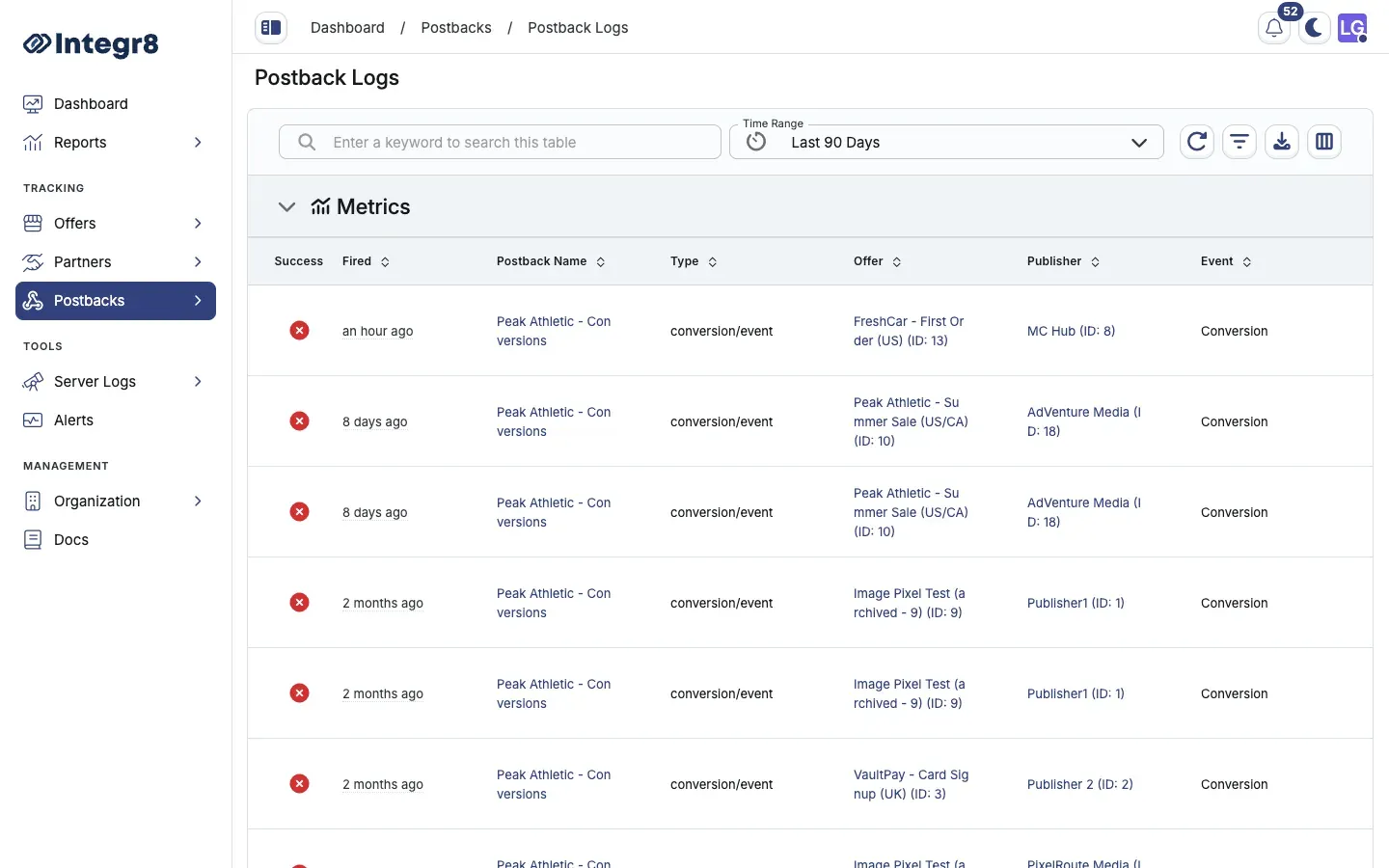
Filter the logs
Section titled “Filter the logs”Every column supports filtering. Filters offer:
- Is: exact match.
- Is not: excludes exact match.
- Contains: substring match.
For example, to find all failed postbacks for one publisher, filter Status = Failed and Publisher ID = <publisher ID>.
Debug a failed postback
Section titled “Debug a failed postback”- Find the failed row in the logs.
- Check the Response Code:
4xx: the publisher’s server rejected the request. Check URL parameters.5xx: the publisher’s server returned an error. Contact the publisher.0or timeout: the publisher’s server was unreachable.
- Read the Error and Server Response columns for specific messages.
- Correct the postback URL or parameters in the postback configuration and verify on the next conversion.
Integr8 does not retry failed postbacks automatically. Once you fix the underlying issue, ask the advertiser to re-fire the original conversion postback to trigger a new attempt.
Column reference
Section titled “Column reference”| Column | Description |
|---|---|
| Status | Success or Failed |
| Postback Name | Name of the postback configuration |
| Postback Type | Click, Conversion, or Event |
| Offer ID | ID of the offer the postback is tied to |
| Publisher ID | ID of the publisher receiving the postback |
| Event ID | Event identifier (Event postbacks only) |
| Transaction ID | Integr8’s unique click or conversion ID |
| Response Code | HTTP response code from the publisher’s server |
| URL | The full URL that was called |
| Error | Error message if the postback failed |
| Server Response | Raw response body from the publisher’s server |
Next steps
Section titled “Next steps”- Set up conversion rejection forwarding so publishers learn about rejections too.