

Click Reports
What this report shows
Section titled “What this report shows”Click Reports provide row-level detail for every click recorded in your campaigns. Use this report to investigate specific traffic sources, audit fraud rejections, trace individual click IDs, or diagnose attribution problems.
How to access it
Section titled “How to access it”Navigate to Reports > Click Report.
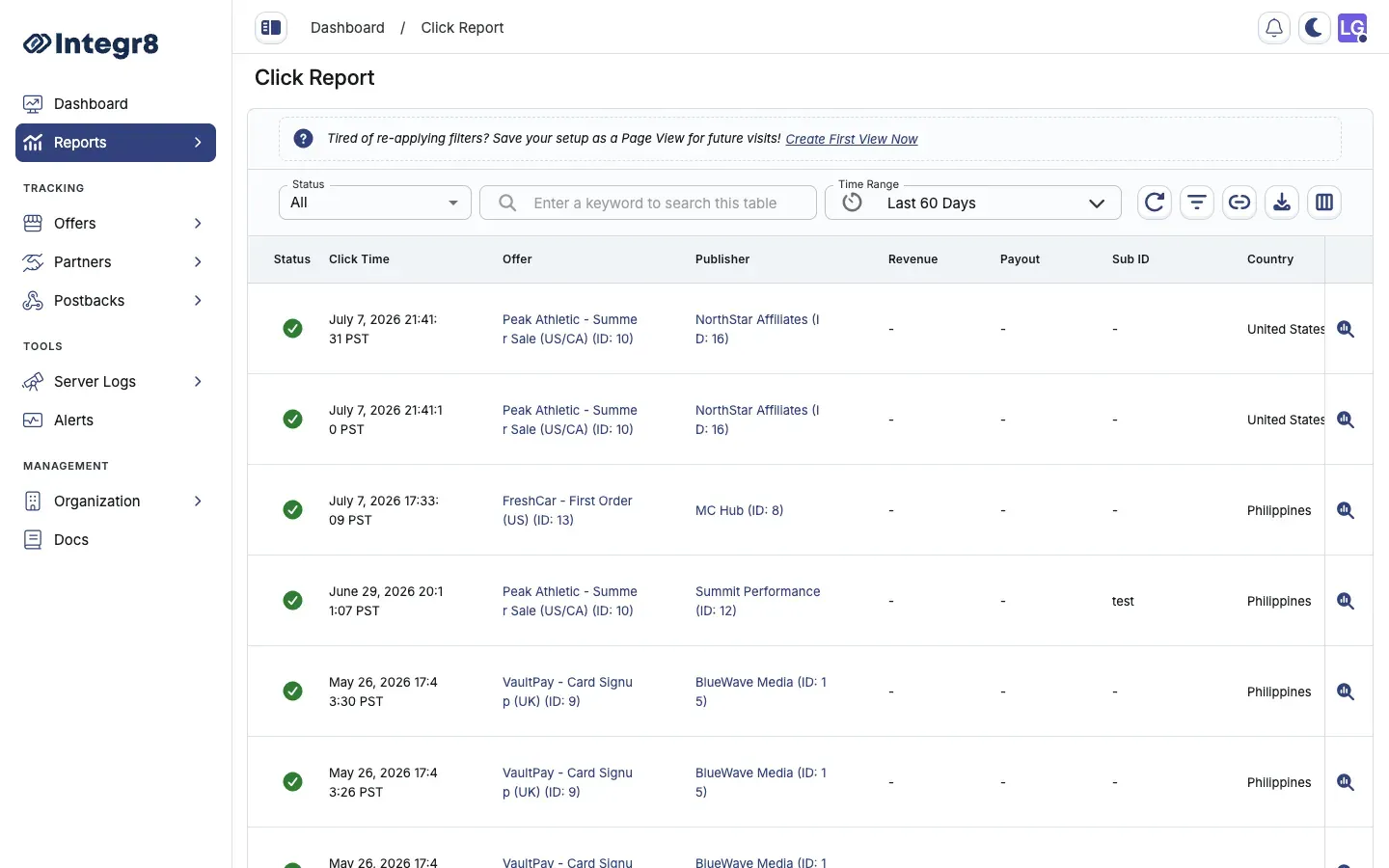
Available columns
Section titled “Available columns”| Column | Type | Description |
|---|---|---|
| Click ID | String | Unique identifier for this click event |
| Timestamp | DateTime | Date and time the click was recorded |
| IP Address | String | Originating IP address (IPv4 or IPv6) |
| Country | String | Geo-resolved country code |
| Publisher | String | Publisher ID and name |
| Offer | String | Offer ID and name |
| Sub ID | String | Publisher sub source identifier |
| Device | String | Device type (Mobile, Desktop, Tablet) |
| OS | String | Operating system and version |
| Browser | String | Browser name and version |
| User Agent | String | Raw user agent string |
| Status | Enum | Approved, Rejected |
| Fraud Reason | String | Rejection reason if status is Rejected |
Use Edit Columns to show or hide individual columns. Save your configuration as a Custom View for reuse.
Filters
Section titled “Filters”Filter click data by any available column. Commonly used filters:
- Date range — narrow to a specific period
- Advertiser / Publisher — investigate a specific traffic source
- Offer — narrow results to a specific offer
- Sub ID — drill into a specific publisher sub source (Sub ID 1–6 supported)
- Rejection Type — filter to
InvalidorFraudrejection categories only - Rejected Simple / Advanced Reason — filter by specific rejection cause (e.g.
click_flooding,vpn_proxy) - Click IP — trace clicks from a specific IP address
- Country — narrow to a specific geographic region
- Device Type — isolate traffic from Mobile, Desktop, or Tablet
- Risk — filter by fraud risk level
Data limits
Section titled “Data limits”- UI display: Up to 2,000 rows shown at a time in the interface
- Export: Up to 5,000,000 rows per CSV export
When filtering by IP address or other high-cardinality fields on large date ranges, reduce the time window to avoid timeouts. Use Export for large dataset analysis.
Export options
Section titled “Export options”Click Export to queue a CSV export of the filtered view. Download from Reports > Download Center.
Related reports
Section titled “Related reports”- Event Report — view event outcomes for clicks that resulted in conversions
- Server Logs — raw request logs for debugging specific click errors