

Blocked sub IDs
Blocked sub IDs let you stop traffic from a specific sub-publisher source without blocking the entire publisher. Use this when you identify a sub ID sending low-quality or fraudulent traffic on a specific offer. Blocked sub IDs are offer-specific; blocking a sub ID on one offer does not affect the same publisher on another offer.
Before you begin
Section titled “Before you begin”- Add the publisher the sub ID belongs to.
- Identify the exact
sub_idvalue to block from your reports or postback logs.
Block a sub ID
Section titled “Block a sub ID”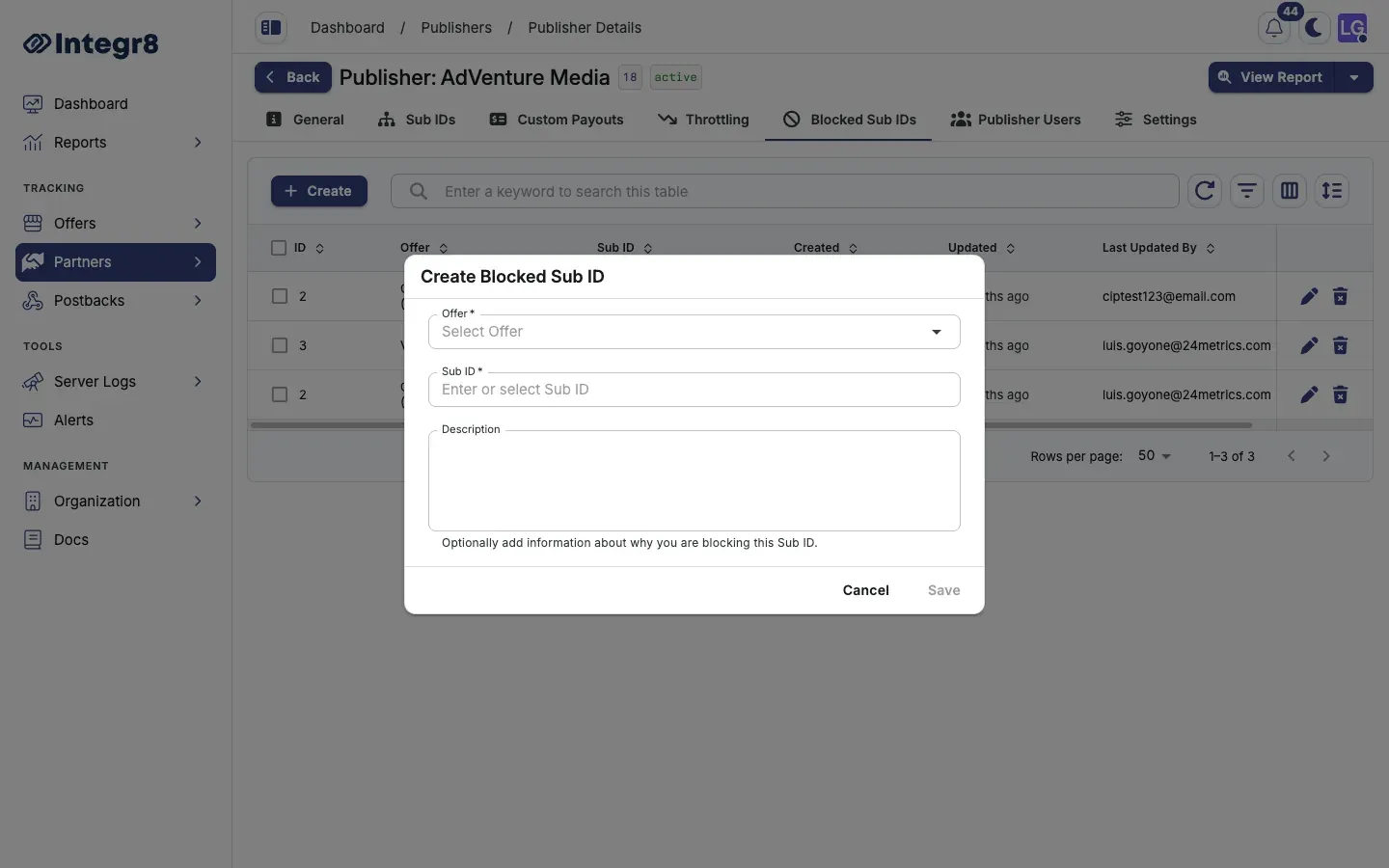
- Go to Partners > Publishers Management and open the publisher.
- Select the Blocked Sub IDs tab.
- Click Create.
- Pick the Offer from the dropdown.
- Enter or select the Sub ID value to block.
- Add an optional Description to record the reason for blocking.
- Click Save.
Clicks from that publisher on that offer with the matching sub_id value are rejected immediately. The visitor is redirected to the offer’s fallback URL.
Bulk blocking
Section titled “Bulk blocking”To block a large number of sub IDs at once, contact support@integr8.co with a list. Bulk import is available on request.
Field reference
Section titled “Field reference”| Field | Required | Description |
|---|---|---|
| Offer | Yes | The offer this block applies to |
| Sub ID | Yes | Exact sub ID value to reject |
| Description | No | Internal note explaining why this sub ID is blocked |
Next steps
Section titled “Next steps”- Configure fraud detection to automate blocking based on fraud signals.
- Set offer caps for volume-based traffic limiting.